Main Content

Laptop Buying Guide

A comprehensive guide that will give you all the information you need to buy a laptop computer.
Buying A Laptop
When technology updates almost daily and there is a seemingly endless sea of options and features, choosing a laptop can be overwhelming and frustrating. However, the choice is simpler than you think. Start by asking yourself what you need/want your laptop to do. Is it for work, school, home or play? Do you want to store lots of multimedia or edit photo and video? Do you play a lot of games with HD graphics? By asking yourself these questions you can determine which type of user (listed below) you are.
The very beginning of the research process begins with deciding which platform you want to use. It simply depends on what you are comfortable with. Essentially, both Mac and PC have the same functions and features in different forms. If you are used to one or the other, stick with it, your experience will be easier and more enjoyable.
How Will You Use Your Laptop?
Minimal Use
Checking e-mail, paying bills online, social networking, surfing the web, organizing and sharing digital photos
Moderate Use
Storing and streaming music and movies, word processing
Demanding Use
Sophisticated graphics and photo editing, video editing/production, multitasking with multiples programs and tabs open
Laptop Weight & Portability
Less Than 3lbs
Great for travelers and students who will carry their laptops around with them consistently for basic functions.
Between 4-5lbs
This middle range is great for users who need a little more power but still want their laptop to be easy to carry and portable, perfect for working from airports or cafe's.
More Than 6lbs
This category is for users who need powerful laptops that can handle a lot of multitasking while having bigger screens, great for gamers and professionals who rarely use their laptops away from their desks.
Laptop Types
Netbooks
Netbooks are a great computer option for some people, but not so much for others. Netbooks are extremely portable-due to their small size and weighing three pounds or less. They don't require a lot of power and are far less expensive than larger laptops. Netbooks are usually $500 or less. Netbooks are really great for surfing the internet, email correspondence, creating and editing small office documents, and possibly to play a CD or DVD with an external drive.
Ultra light and Portable
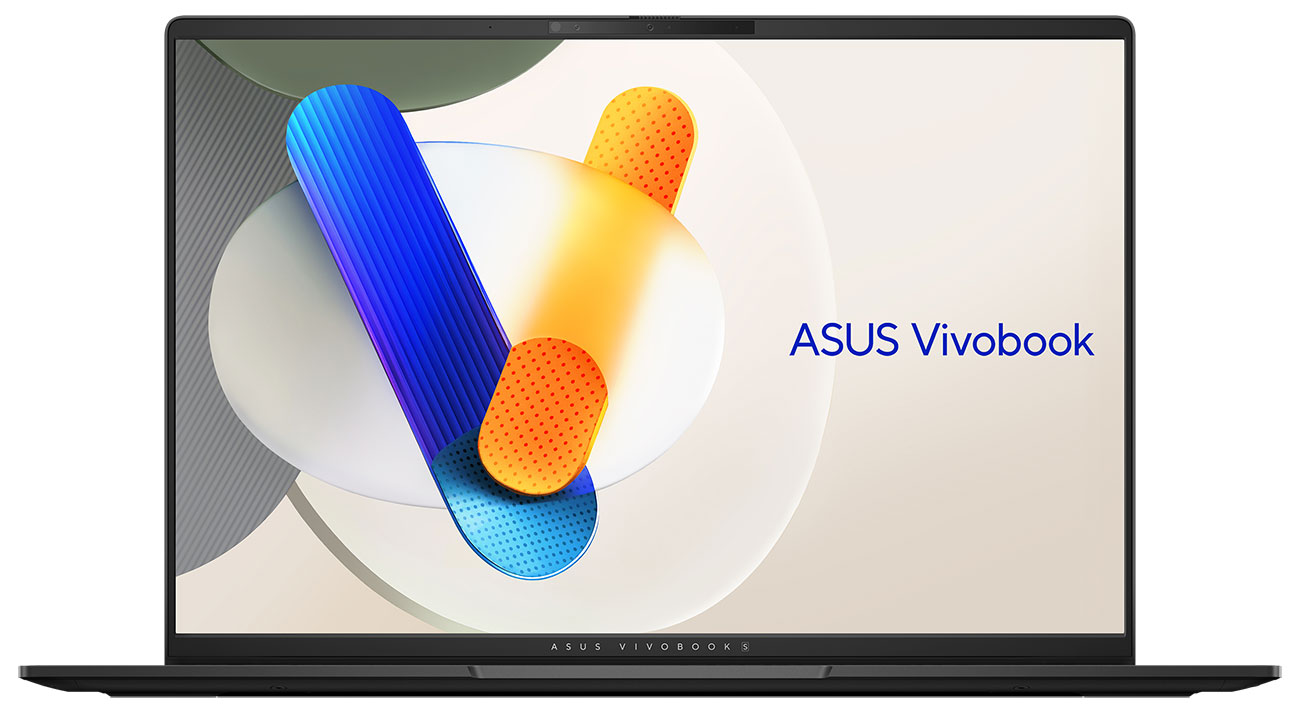
Think of an ultraportable computer as a more powerful, slightly larger netbook. The netbook has more features and is larger for easier use. The Ultrabook also comes with a higher price. Unlike a Netbook, the ultraportable laptop can function as an everyday computer. They will be small and light enough to bring most places-especially convenient for business travelers. Not as powerful as a desktop replacement, the ultraportable will make up for what it lacks in portability.
Midsize (Conventional)
The midsize or conventional laptop is designed to give the user anything they need for basic computing. Word processing, storing music and digital photos, watching DVDs, and online communication is easy on a midsize laptop. They are larger than an ultra light and therefore don't travel as easily.
Desktop Replacement
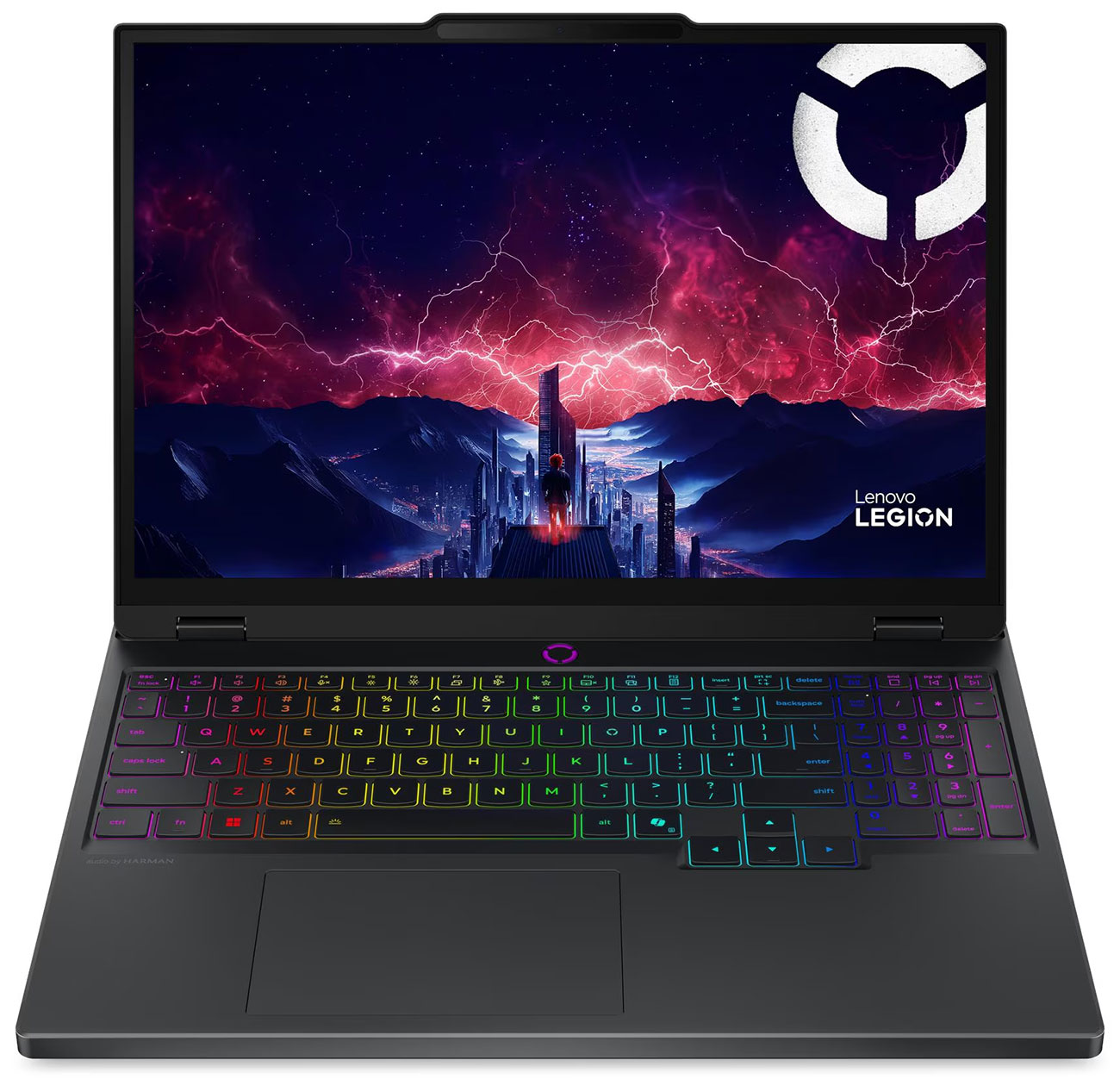
These are the largest and heaviest laptops. They will have the most power and options-similar to a desktop computer. Due to their larger size, desktop replacements are too big for routine movement, other than throughout the home or office. Desktop replacements have the most power, have the fastest processors, and most features of all the types of laptops-out of the box. These laptops can be used for gaming and multimedia, audio, visual work.
The 2-in-1
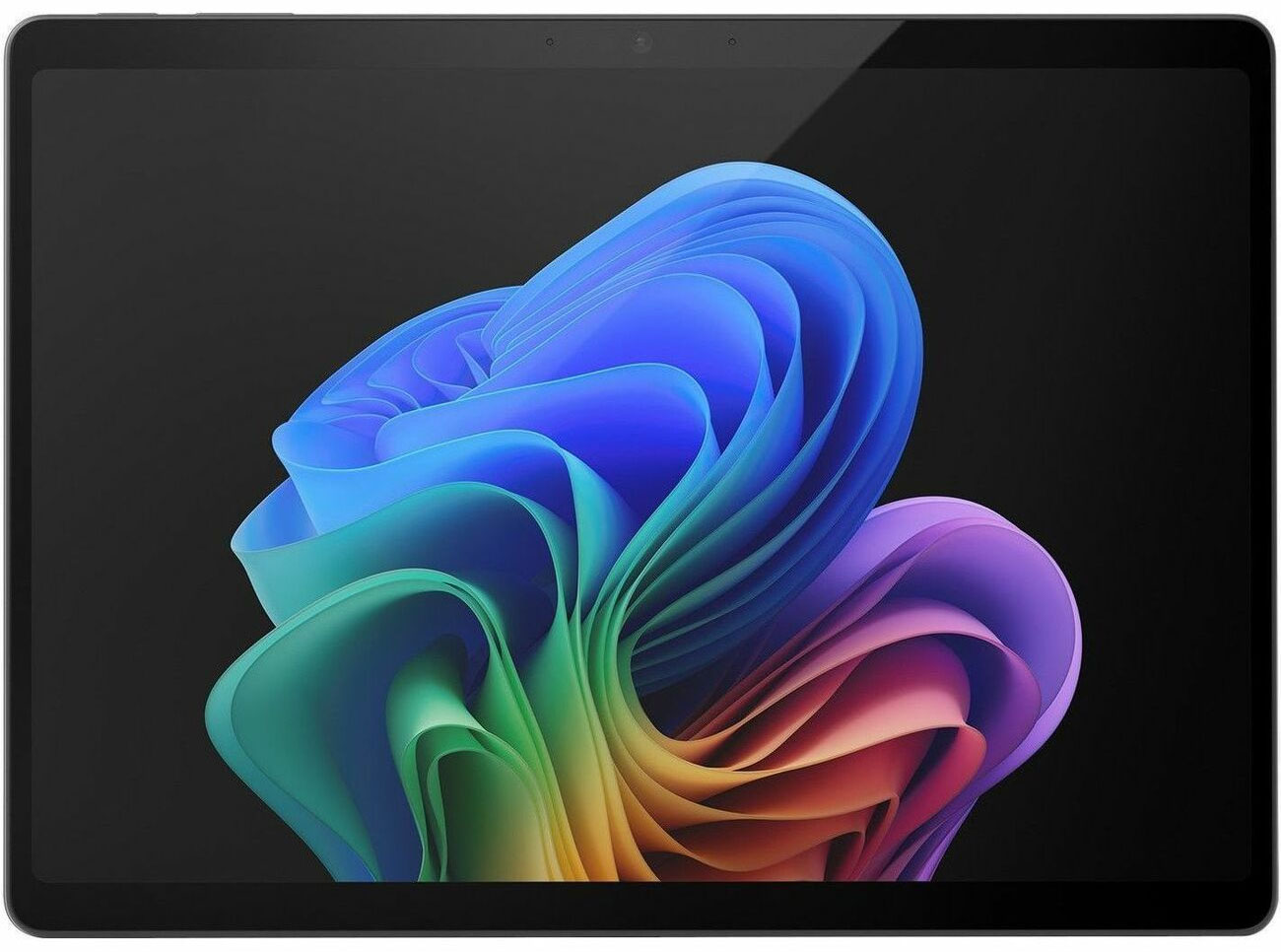
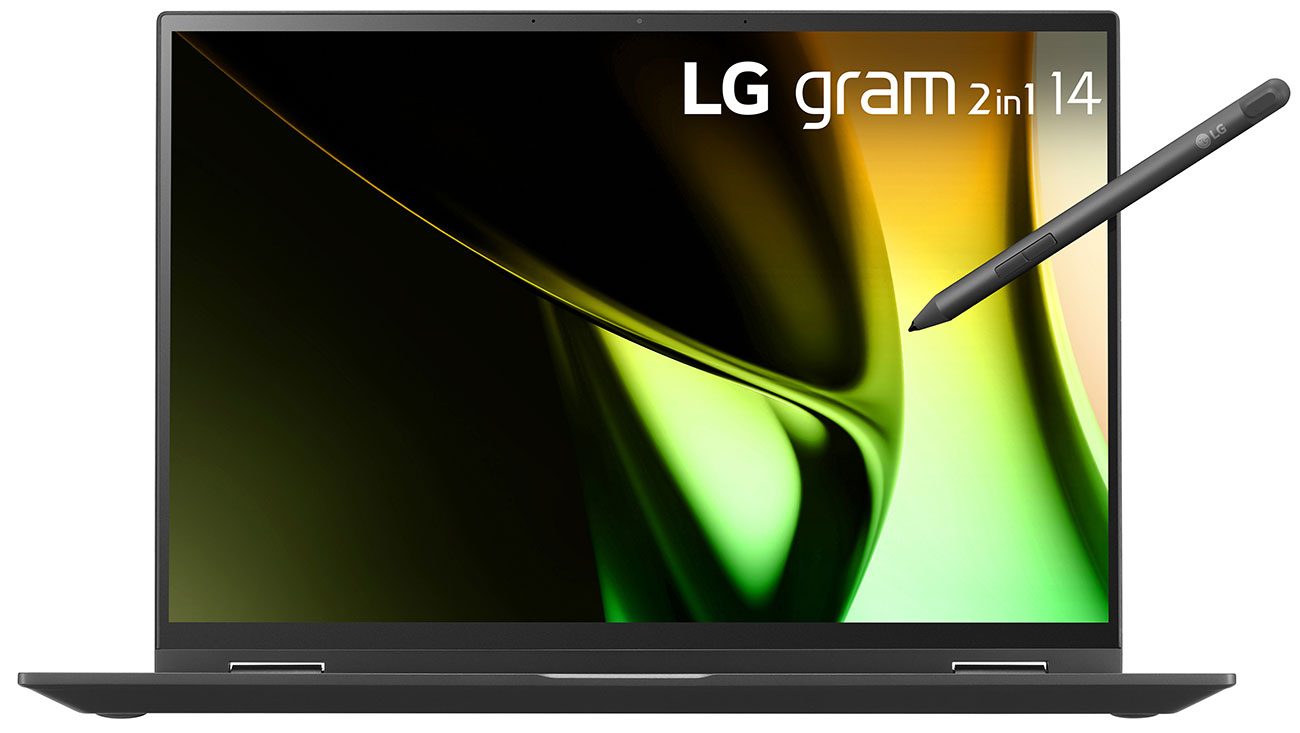
The 2-in-1, or convertible, laptop combines the convenience and ease of a tablet with the utility of a keyboard. There are two main ways this happens: either the two are attached and the keyboard can fold behind the touchscreen, or the tablet side can be fully detached from the keyboard. These 2-in-1 laptops are great for professionals and students when it comes to giving presentations, as they are light to carry like tablets but give you the keyboard function when you need it.
Laptop User Types
Home or Standard
Using a laptop as a primary computer will work for most people. Current models sport a lot of the same features, functions, and power of their desktop counterparts with the added portability and space saving design of a laptop. If your home use requires some serious power, a desktop may be a better fit.
Home/basic users should look for the following (minimum) specifications in a computer:
- Intel i3 or i5, Intel Dual Core, AMD A4 Processors
- 4GB RAM (minimum) however, current versions of Windows and OSX run better with a minimum of 8GB RAM.
- Wi-Fi
- DVD/CR-R/CD-RW/Blu-ray Writing Capability and Playback
Student
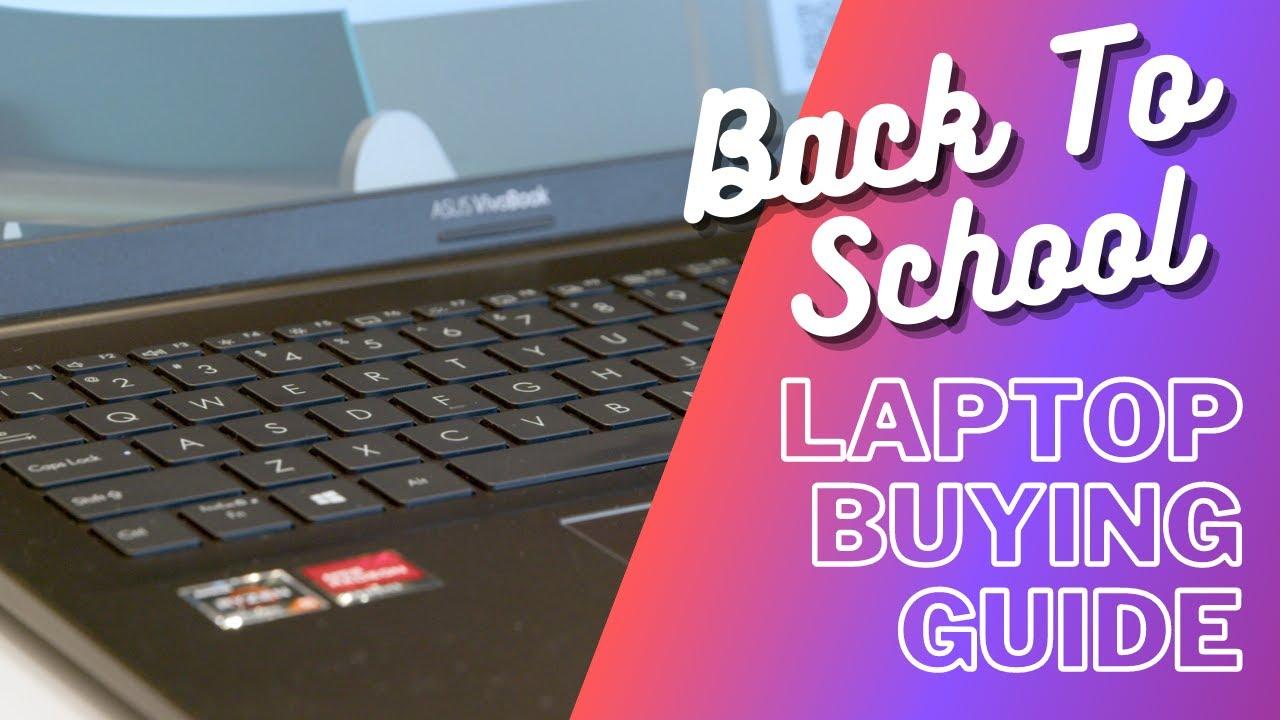
A student requires a little more power than your standard user but cost efficiency, portability, and durability are most important. Students should look for:
- Intel i3 and i5 models, AMD A4 and A8 Models
- 4-8GB RAM (depending on usage, more may be necessary)
- Wi-Fi
- DVD/CR-R/CD-RW/Blu-ray Writing Capability and Playback
- Considerable Amount of Battery Life (5-7 hours) for Wireless Class and Library Use
Frequent Traveler
For the on-the-go user, portability and battery life take priority. You may have to sacrifice some features for size, but with the new Ultrabook options, the sacrifice in performance is minimal. Try to meet the minimum requirements below but remember to supplement accessory solutions of fill the voids left by the size restrictions, like port replicators and external drives.
- Intel i3/i5/i7 Models, AMD A6/A8 Models
- 4GB RAM (minimum)
- Wi-Fi
- Extended/Extra Battery
Multimedia/AV and Gaming
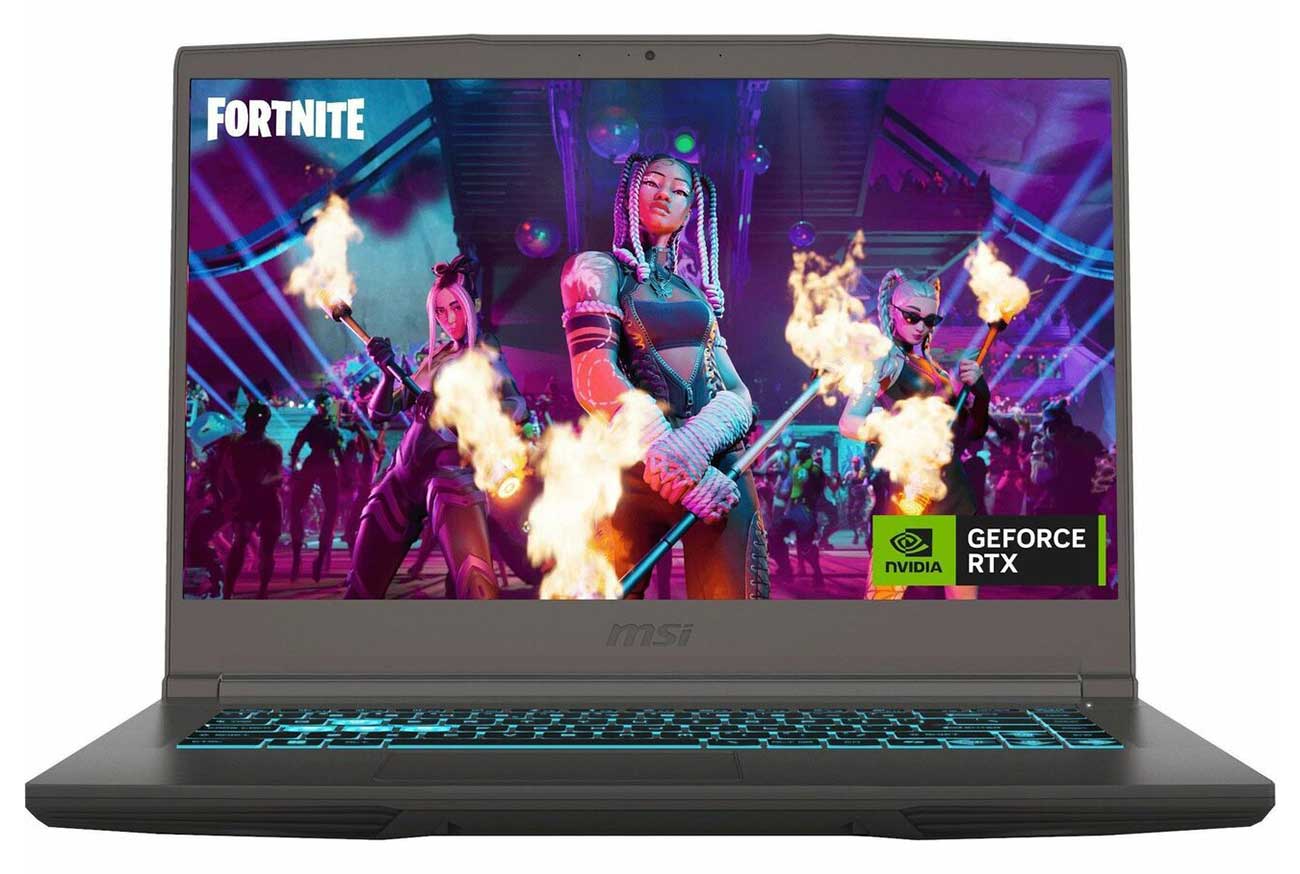
Power, speed, and performance are the main staples of a multimedia/av/gaming users needs. Large hard drives, lots of RAM, and a fast processor will allow for multitasking and seamless rendering while a dedicated graphics card will allow for HD video and gaming graphics to play without any issue.
- Intel i7 or AMD A8 Models (the faster the better)
- 8GB RAM (gamers and video editors may want 16GB or more)
- Dedicated Graphics Card*
- Significantly Large Hard Drive
- HDMI In/Out
- Bluetooth Capability
- USB 3.0 Ports (10x faster than USB 2.0) For Data Transfer
*Check with the game's specifications for minimum requirements of memory on the graphics card. Graphics cards have different memory capacity and some are more powerful than others. For example, DDR3 is 30% more powerful than the DDR2
Choosing the right laptop for your needs may seem like a daunting task. With our informative guides and charts, you will be able to determine which laptop best suits your needs.
Laptops come in a variety of sizes. They can range from a thickness of 0.5"-2" and can be anywhere from 2-10 lbs. They also have a wide range of features from bare-bones to a replacement for a desktop computer.
Unfortunately, there is no perfect laptop, which means getting some features may require you to sacrifice others. For instance, if you want a super-portable computer, an ultra-portable may be the best option for you. While you are getting a light-weight computer, you will pay a premium price for a computer with fewer features than a midsize. On the other hand, if you are looking for a desktop replacement you can get a lot of features, but your computer will not be as portable.
Operating Systems
The Operating System is considered to be the "heart" of your laptop. It manages all of the hardware and software, including files, memory, and connected devices. It lets you interact with your laptop and programs in a visual manner, meaning it makes everything look the way it does and not just endless code.
OS X
This operating system is exclusive to Mac computers; OS X is an easy-to-use interface that complements the Macs' sleek aesthetics, and impressive battery life. We recommend going with OS X if most of your devices are Apple, due to the fact that it's extremely simple to sync photos, documents, contacts, and more when it's all Apple related.
Windows
Windows operating systems are designed specifically around an intuitive touch-screen interface (although it can definitely still be used with a traditional mouse and keyboard). If you are a gamer, or simply more comfortable with the Windows system, it's the best option for you. It's made to be user-friendly and almost all software is compatible with a Windows-based laptop.
Chrome OS
This particular operating system is exclusive to the Chromebook line of laptops. Chrome OS runs custom apps and cloud-based programs rather than your traditional software. It's the perfect laptop for surfing the web, checking email and social networks, and sharing photos with friends and family. It's not a product that will be able to handle many programs or data-intensive tasks such as video editing and hardcore gaming.
Laptop Internal Hardware
Processor
A processor, also known as a Central Processing Unit (CPU), is the brain, or engine, of the machine. The CPU also determines the power-management of the battery. Simply put, the CPU is made up of "cores" the more cores, the faster the CPU.
Intel® Processors
Intel® Processors can be found in all modern MacBooks and majority of Windows computers. Their main processors are Core i7, i5, i3 and M, as well as Pentium and Celeron. Pentium® and Celeron® are adequate for basic e-mail, internet, and productivity tasks, but their speed and multitasking capabilities are limited compared to the Core series. The Core M is designed for ultra slim devices that provides plenty of power for day to day tasks without draining battery power. The i3 processor is considered to be entry-level, more than adequate for everyday tasks. The i5 is a mid-grade processor and one of the most common, great for students and people who need just enough power for multitasking and completing most computing tasks. The i7 is considered to be Intel's top-of-the-line processor, meant for people who are hardcore gamers, photographers, videographers, and individuals in graphic design.
AMD Processors
AMD Processors are a lot less common, but do occasionally pop up in certain computer models. They are very similar to Intel's processors starting with A4 being the lowest and moving up to A10 as one of the more powerful CPUs.
RAM
Random Access Memory (RAM) is the main memory of the machine and serves as the fuel that runs all the computing processes. RAM is key in multitasking, as you run more and more process, the CPU dedicates more RAM to each process. So naturally, the more you have available: the more you can dedicate to each process. A minimum of 2GB is required for basic computing, but nowadays 6 or 8GB are highly recommended for an overall smoother laptop experience. Many laptop models allow you to expand RAM, later on, so you can always choose a model where that is possible and a few years down the line are able to upgrade your memory.
Screen Size
This is completely up to you. Find what you're comfortable with and go with it. Be sure to consider overall size and portability. Most laptop sizes run anywhere between 11 and 17 inches. A larger screen is ideal for gaming, watching movies, or photo and video editing. Keep in mind, bigger screen size means the laptop will be heavier, so if you're looking for portability we recommend to stay in-between 11 and 14 inches.
Resolution
Higher resolution equals better picture quality. This may be something to consider if you are a graphic designer, or video and photo editor. The main resolutions to look at these days are: HD (1366x768), HD+ (1600x900), Full HD (1920x1080), Retina Display (2304x1440 and higher - mostly found in Apple computers), QHD (Quad HD - 2560x1440) and QHD+ (3200x1800), and 4k Ultra HD (3840x2160).
Touch Screens
Touch Screen laptops are currently only found on Windows-based computers. They make navigating on your laptop more intuitive and incorporates that of what a tablet would give you, but on a laptop. Tap to select and then simply drag to move items, or swipe to scroll and pinch to zoom. This is great for users who like the feel of a tablet but need more power to do their tasks.
Internal Storage (HDD & SSD)
The hard drive is the attic or garage space of your computer. It's the place where you store your files like your music, photos, and videos, as well as critical files like program information and personal documents. The most common hard drive employs a spinning magnetic disk that stores your files. The faster the disc spins (RPM) the faster your computer can retrieve the files, and the more battery is consumed.
Another style of hard drive is the Solid State Drive (SSD) style. The faster speed and compact size are the reasons SSD hard drives are becoming more popular. However, this increase in performance is not without an increase in cost.
CD, DVD, and Blu-ray Drives
Many laptops still come with a standard CD/DVD writing and playing drive, or optical drive. However, nowadays many laptops are not including optical drives in order to make the laptop smaller and lighter to carry. With flash drives and digital downloading and streaming, optical drives are quickly becoming obsolete. Although, one does have the option of purchasing an external optical drive for their laptop in case there is a DVD or CD they would like to play on the computer.
Ports & Connectivity
After you have determined how much power and storage space you need, it's time to wade through the sea of features to decide which are critical to your experience, and which you could live without.
*All features described below aren't necessarily included on ALL models.
HDMI
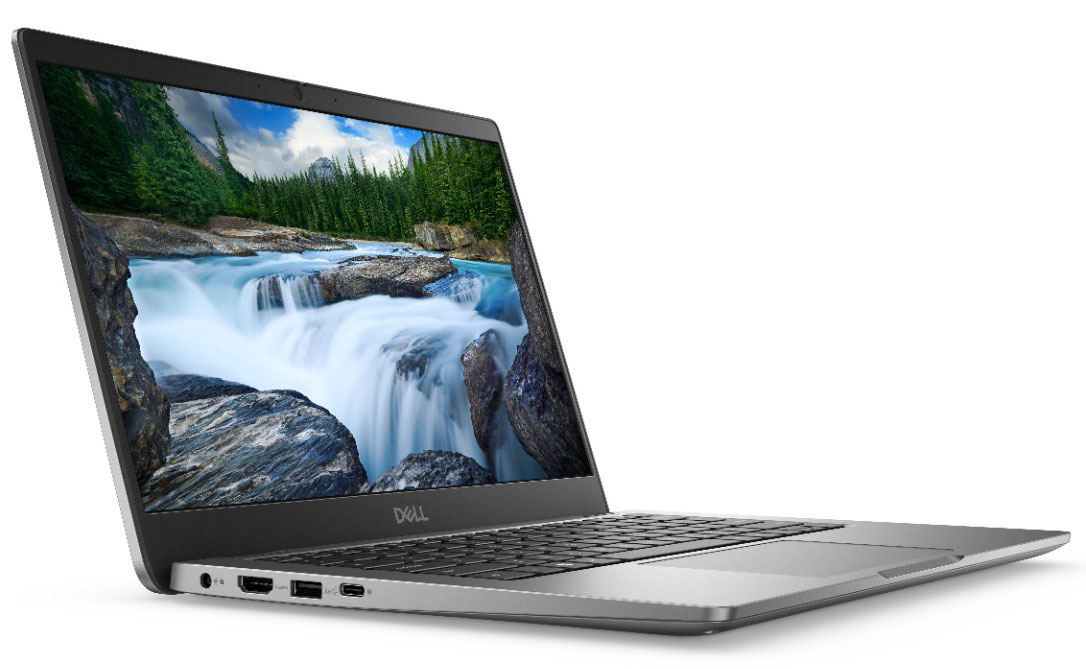
The HDMI connection allows you to connect your laptop to any HDMI ready television through an HDMI cable. Since the cable transfers audio and video, your laptop's entire experience is translated onto the LCD/LED television you are plugged into. Play games, watch movies, or just browse the web with full HD picture.
A common set up involves plugging the laptop into the TV via HDMI cable while connecting a wireless keyboard and mouse. With this setup, users can wirelessly control their laptop from the comfortable convenience of their couch using their HD television as the display.
USB 2.0/3.0
Used for data transfer, a USB connection allows users to connect virtually any peripheral (with USB Cable) to their machine. Connect cameras, mp3 players, hard drives and much more with a USB cable. 3.0 has 10x the data transfer speed that 2.0 offers.
Thunderbolt
Ultra-high bandwidth for fast data transfer between devices featuring a Thunderbolt or Mini DisplayPort connection.
Wi-Di (Wireless Display)
Wi-Di has essentially the same function as the HDMI connection without the cables. Laptops with Wi-Di can translate the experience to Wi-Di capable televisions for a full HD experience.
Multi Card Readers
A multi card reader will allow for users to insert and retrieve data from storage disks on cameras, cell phones, and much more. Commonly accepted types are Compact Flash I & II, SmartMedia Card (SM), Memory Stick (Duo), SD, XD, and micro SD cards.
eSATA Ports
eSATA ports are used to connect external eSATA hard drives, similar to USB.
Wi-Fi
Owning a laptop gives you more freedom than a conventional desktop but, you may need a few extras to be connected to the internet, digital camera, hard drive, camcorder, mp3 player, or your printer.
Laptops come with a Wi-Fi connection built-in, but not everywhere you go will there be a wireless signal for you to connect to the internet. If you are a frequent traveler or need to access the internet but are not near a Wi-Fi signal, you will need to get cables or a mobile wireless card.
The cables you will need in order to connect to the internet are either a CAT-5 cable plugged into an Ethernet port or a phone cord plugged into a modem. The two other ways to connect to the internet are with a mobile broadband card from your wireless provider or you can buy a laptop with the mobile wireless card built-in.
Laptop Accessories
Accessories are vital for laptops. They accentuate the experience while adding functionality and utility. Just like the laptop itself, the accessories are dependent on your usage and determined need.
Laptop Bag
Whether you're a traveler, commuter, student, just a home user, a carrying case and/or bag is a primary accessory to consider. Styles, colors, and features range but all bags add security and provide a place to keep all your gear. Things to consider when shopping for a laptop bag are size, padding, reinforced corners, and extra storage space. You may need to carry a mouse, keyboard, extra battery, or cables so make sure there is enough room for all your accessories.
Docking Station
Docking stations create a portable workstation complete with extra ports and charging functions. Docking stations allow you to connect to a network and leave your cables in place when you take your laptop with you. They can also serve as a way to connect your laptop to larger monitors and peripheral keyboards.
Port Replicators
Port replicators are similar to docking stations in terms of their functionality. The main difference between the two is size. They range from as small as a couple inches to slightly smaller than a docking station. The main difference is that port replicators have a significantly more portability than docking stations while still giving users access to additional ports and connections.
Drives
External drives have a variety of uses. For storage and backup, an external drive is critical. Most connect via USB and can also serve as ways to transport data throughout devices. Thumb drives, or flash drives, are smaller external drives with smaller storage capacity, however, their size makes them extremely portable. External drives are highly recommended for backing up all of your data, just in case.
Networking & Modems
Since most laptops have built-in Wi-Fi capability, a wireless router or modem will give your home or office a wireless network for connection. Modems differ in speed and range and your need is dependent on your usage and the area the network is being set up in. Features like "gigabit" functionality gives users the ability to plug an external drive or thumb drive into the router and broadcast the stored files across the network.
It is also good to consider the dual-band router option. Certain devices use lower frequencies than others and without a dual-band set up, the network will function on the lowest common denominator. With a dual-band network, frequencies remain mutually exclusive and each device will function at its highest level.
Mice and Keyboards
Wireless, Bluetooth, and gaming keyboards and mice are available to meet your specific needs. Consider a size and style that fits your intended usage.
Q&A Summary
What are good brands of laptops?
Some of the best laptop brands include Acer, Apple, ASUS, Dell, HP, Lenovo and Microsoft. The best laptop for you will depend on your needs.
How much do laptops cost?
You can find laptops at a variety of price points, from as low as $400 to over $1,000. The more features a laptop has, like advanced processors or graphics cards, the more it tends to cost.
How long do laptops last?
On average, a laptop will last about 5 years before its performance starts to decline. However, there are brands that tend to offer greater longevity; MacBooks, for example, should last around 7 years.
What are 2-in-1 laptops?
2-in-1 laptops are devices that can function as both a traditional laptop and a tablet for greater flexibility.
Where can I recycle old laptops?
You can recycle your old laptop at Abt's recycling center. Check out our Green Initiatives to learn more about recycling electronics at Abt.