1) WHAT IS "RDS"
AND HOW CAN IT INCREASE MY ENJOYMENT OF FM RADIO?
2) WHAT ARE "AUTO
TUNER PRESETS" AND HOW DO I USE THEM?
3) WHAT ARE THE PROBLEMS
I NEED TO BE AWARE OF WHEN PUTTING MY COMPONENTS IN A RACK OR
OTHER SMALL, ENCLOSED SPACE?
4) WHAT'S "MULTI
SOURCE" ALL ABOUT?
5) CAN I OPERATE NON-DENON
COMPONENTS (CASSETTE DECKS, CD PLAYERS, ETC..) WITH A DENON REMOTE
CONTROL?
6) WHY CANT I
CHANGE DSP MODES OR TURN "CINEMA EQ" ON (OR OFF) WHILE
IM USING THE ON-SCREEN MENU?
7) WHAT DO I NEED TO
KNOW ABOUT CONNECTING A DVD PLAYER TO A DENON SURROUND SOUND COMPONENT?
8) THE FRONT PANEL INPUT
CHOICES ON MY DENON DOLBY DIGITAL RECEIVER OR PREAMP/PROCESSOR
DON'T SEEM TO MATCH THE REAR PANEL CONNECTOR ID'S. FOR EXAMPLE,
MY FRONT PANEL SELECTORS SAY "CD", "VDP/DVD",
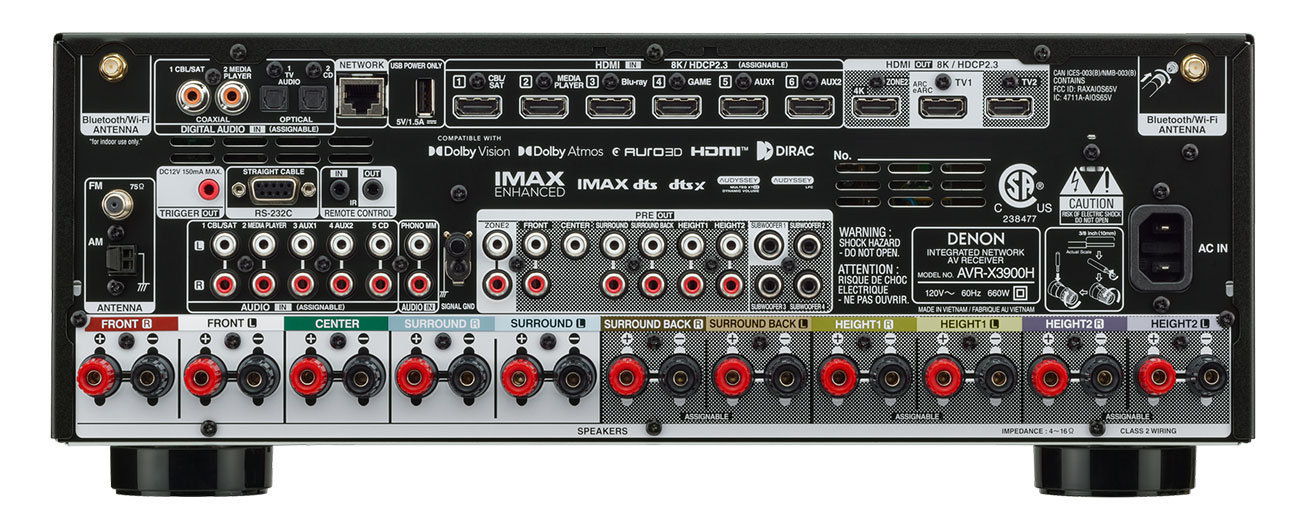
ETC. WHILE THE REAR PANEL HAS INPUTS LIKE "AC-3 RF",
"COAXIAL", AND "OPTICAL". I'M CONFUSED. HELP!
"RDS" stands for "Radio
Data System" and it allows FM broadcasters to send far more
than just an analog audio signal out over the air waves. Using
a 57 kHz "subcarrier," stations can transmit digital
RDS data for reception by RDS-equipped FM tuners. This technology
opens up a whole new range of conveniences and help to the listener
with RDS reception capability. RDS began in Europe where it is
now very successful. RDS is also increasingly popular in the Far
East and, now is making substantial headway in North America.
In fact, over 700 radio stations in the United States, most of
them in major metropolitan markets, now broadcast RDS information
on a regular basis.
Just what kind of additional information can you expect? That
depends on what the broadcaster transmits and what your tuner
can pick up. Heres a master list of all the RDS services
that might be available. Youll see that weve divided
them into two categories, Static and Dynamic, that are differentiated
by . . .
Program Service Name
(or PS for short): This simply displays a name of call
letters instead of the broadcast frequency. With more and more
stations identifying themselves with names like "MIX 106,"
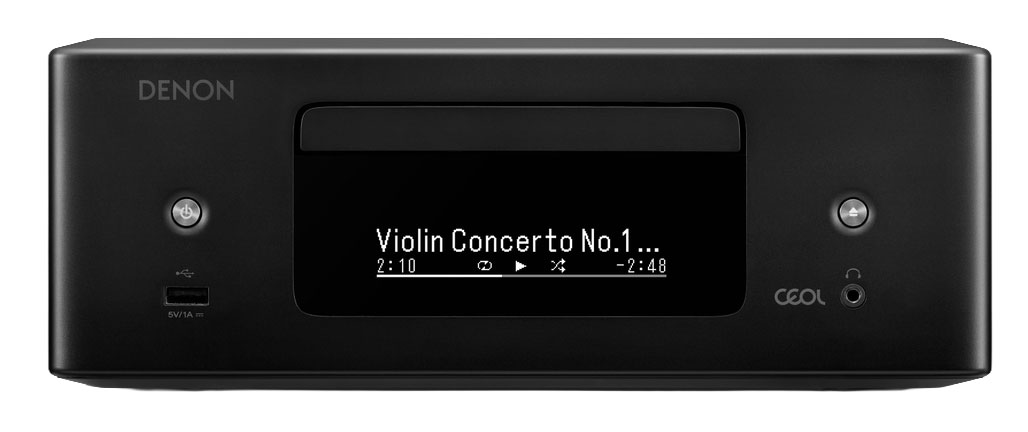
"WNYC-FM," or "JAZZ 88," its a no-brainer
to see how even this one aspect of RDS service makes finding your
favorite broadcast much easier!
Program Type Code (PTY): This identifies a particular type
of broadcast (Rock, Jazz, Sports, Talk, News, Classical, etc.)
So far, 24 categories have been defined and assigned but the RDS
system has reserve capability built in so that emerging styles
of broadcasting wont be left out. The advantage here is
that most RDS-equipped tuners let you scan available broadcasts
by program type so you can find what you want more quickly. And
one more thing -- when a station changes its format (from Country
to Easy Listening, for example), its very easy for that
station to transmit a new RDS "flag" that will automatically
update your RDS-equipped tuner.
Program Identification Codes (PI): This is one of the rarely-seen
"hidden" RDS features that lets you keep in touch with
your favorite broadcasts even when youre traveling. Technically
speaking, PI is a four-digit hexadecimal code (arent
you sorry you asked?) based on a stations individual call
letters. It tells your RDS tuner what signal its receiving
at any given time (frequency, PTY code, etc.) Youll
see how RDS uses the PI information when you read Alternate
Frequency (AF) immediately below.
Alternate Frequency (AF): If PI is one of RDS
"back office" functions, AF is what youll
see in action all the time. AF (perhaps better identified
as Alternate Frequency Switching), automatically returns
your FM tuner to the strongest signal carrying the program you
were originally listening to when the original broadcast gets
too weak to receive clearly! This little bit of magic is particularly
useful when youre traveling longer distances by car. The
way it works is this: The original RDS broadcast would contain
a coded list of all the alternate frequencies carrying the same
information (NPR or syndicated shows are prime candidates here,
of course). When the original broadcast faded into uselessness,
the RDS circuitry would instantly search all the alternate frequencies
for the strongest, most useable signal and automatically switch
to it without any work on your part! In theory, you could drive
the width of the country without retuning your radio at all. Hows
that for convenience?
Traffic Program (TP): This symbol alerts you to the fact
that the station youre listening too regularly broadcasts
special traffic information. You can search for TP stations so
youll always have that extra edge as youre commuting
or driving on that long vacation. Think of TP as the "road
sign" for Traffic Announcement (TA) listed in "Dynamic"
services immediately below.
Traffic Announcement (TA):
This is the active side of TP
capability. TA even allows you to program some automotive
tuners to constantly monitor TP stations and tune them in automatically
if a special announcement is being made -- even if youre
already listening to another broadcast, a cassette, or a CD at
the time! This guarantees up-to-the-minute information to make
your trip easier.
Radio Text (RT): This feature
allows a broadcaster to send up to a 64 character message that
could scroll across your radios display, things like sports
scores, song titles, artist or album names, even advertisements.
Just remember -- if your car unit has RT capability, use
common sense. Please keep your eyes on the road until its
safe to look, Clyde!
Clock Time (CT): An RDS-equipped station broadcasts a time
and date synch signal once a minute. Your RDS-equipped receiver
picks it up and automatically resets itself even if youve
never even looked at the clock before! And RDS is smart enough
to figure out Daylight Savings Time, different time zones (an
important feature for long distance truckers). Think of CT
as radios answer to that silly clock in our VCRs that always
seems to be flashing 12:00!
Emergency Alert System (EAS): PTY code # 31 (see
Program Type Code in the "Static" list above)
has already been reserved for emergency use. If your RDS tuner
senses an emergency code, it will flash an ALERT message. In addition,
most automotive units will pause a CD or cassette, switch to the
EAS broadcast , and increase playback volume to a preset
level to make sure youre paying attention. ("You vill
hear dis und you vill hear dis NOW!")
Program Item Number (PIN): No, this wont get you
into the master account at an ATM machine (darn!) but your broadcaster
could assign special codes to individual programs than would let
your tuner know when that program was on. An RDS-style PIN
could trigger a tape machine to record something you want even
if youre not there, wake you up to the manic tones of your
favorite morning "shock jock," etc.
Transparent Data Channel (TDC): This is one of the commercial
RDS "add-ons" that youll probably never use directly.
(Were including a brief description of it here so you cant
say no one ever warned you.). A TDC signal broadcast from
an existing transmitter, for example, could control an electronic
billboard and change its message continuously throughout the day.
TDC capability is primarily an additional potential revenue
source for an RDS-equipped FM station. You heard it here first!
Radio Paging (RP): Another commercial application. Look,
those FM transmitting towers can be used for lots of things --
why not an inexpensive local paging service? Revenue, remember?
This isnt a complete list but it gives you an idea of the
enormous versatility you can expect from RDS services as they
expand across the country.
Denon has been at the forefront of RDS ever since its inception
and has more experience with it than almost anyone else in the
business. Thats why, for example, youll find RDS capabilities
like RDS Search, PTY, PS, TP, and RT on home units
like our AVR-5600 Dolby Digital receiver and a different RDS menu
of conveniences on our automotive products. Enjoy!
back to top
"Auto Tuner Presets" are
simply Denons convenient way of allowing you to automatically
attach an "electronic bookmark" to as many as 40 listenable
FM broadcasts available in your area. Once youve done this,
you can quickly and conveniently listen to any of them without
having to scan everything on the broadcast band to find them..
Depending on which Denon you own, youll be able to access
this convenience in either of two ways.
On most older units (usually those without on-screen menu capability),
youll notice a "Memory" button on the front panel.
To activate the "Auto Tuner Preset" circuitry, simply
turn your unit off with the front panel power switch. Then, while
holding down the "Memory" button, simply turn your
Denon on again. Youll see a front panel "Auto Preset"
indicator come on as your component goes through its paces.
If you have a newer Denon (one with an on-screen menu), you can
activate "Auto Tuner Presets" from the SYSTEM SETUP
menu screen. (On the AVR-3600/5600, for example, "Auto Tuner
Preset" is the sixth item on this screen.) Use the remote
controls "Cursor" keys to select "Auto Tuner
Preset," and then press "Enter." A special "Auto
Tuner Preset" menu screen will appear. Select "Yes"
with the cursor keys and wait as the system searches all the available
FM broadcasts and reads the strongest into memory. (Youll
see "Search" and "Complete" respectively as
your unit completes this process.) After youve completed
setting the Auto Tuner Presets, you can verify the broadcast frequencies
now in memory by simply following the instructions in your Owners
Manual.
Remember that RDS-equipped tuners will prioritize RDS broadcasts
over non-RDS transmissions. Check your Owners Manual for
details.
There are minor model-to-model differences thatll be covered
in each units Owners Manual. Check there for exact
details. In the meantime, this should get you up and running.
.
back to top
Not too many! Thats because
Denon products have sophisticated monitoring and safety features
designed to sidestep problems before you need to deal with them
directly. (Please refer to the FAQ on "Protection" for
more detail.) However, that being said, there are some things
you may want to hold in the back of your mind if youre planning
to build a special enclosure to show off your prized component
collection.
There are two major challenges to deal with. The first is heat.
Fortunately, thats pretty easy to handle. The second is
simply one of real estate -- where do you put all those cables,
connectors, etc., youll need for your home entertainment
system? And how do you know what goes where once youve hooked
everything up?
Lets look at the heat issue first.
First, remember that all electronic components produce heat. And
heat is the enemy of long, trouble-free life. Some components,
like power amplifiers and surround sound receivers, for example,
produce much more heat than source components like CD players,
cassette decks, and tuners. etc. Thats only natural. After
all, Denons power amplifiers are all high current designs
and high current mean higher heat.
The second thing to remember is that heat rises.
So if you want to avoid heats long-term detrimental effects,
the best thing is make sure you adequate air circulation around
all the components in your enclosure. And you can insure that
by having enough room around your components to let the air circulate
by itself.
Heres a general suggestion: Make sure the real heat-producers
have plenty of space immediately above them. Dont, for example,
place a CD player or VCR immediately on top of your Dolby Digital
receiver! Most surround receivers and power amplifiers need at
least 4" or 5" of open, unrestricted air space immediately
above the top cover. This lets the hot air rise naturally and
helps keep internal circuitry cool enough to function dependably
over the long haul. If you absolutely dont have this amount
of space in your cabinet or closet, you can:
(1) Use a "Whisper Fan" (a small, quiet fan specifically
designed to cool electronic components) to pull air over your
units heat sinks to draw the heat away it. The disadvantage
here is that, although these fans are VERY quiet, you still might
hear one if youre sitting close to your stack of components
and playing music or a video very quietly. Remember that there
are different ways of mounting fans to minimize resonances. Sometimes
foam helps. Check with the fans manufacturer for recommendations.
(2) Use perforated shelves so that, even if your real "heat
factories" dont have the air space around them we recommend,
the shelf immediately above wont completely block the heated
air and trap it close to the components. This passive approach
is certainly quiet but may not give you the cooling power you
need for a high powered, multi-channel audio/video system.
Overall, we like the "Whisper Fan:" option a bit better
as its a more pro-active, and usually more effective. However,
it may not be practical for your system.
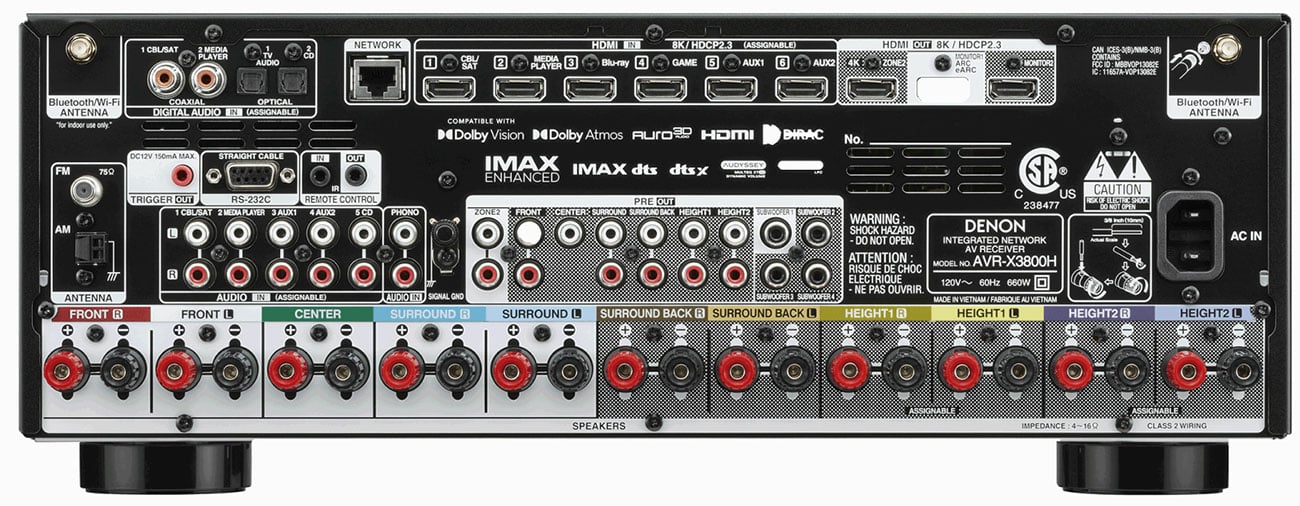
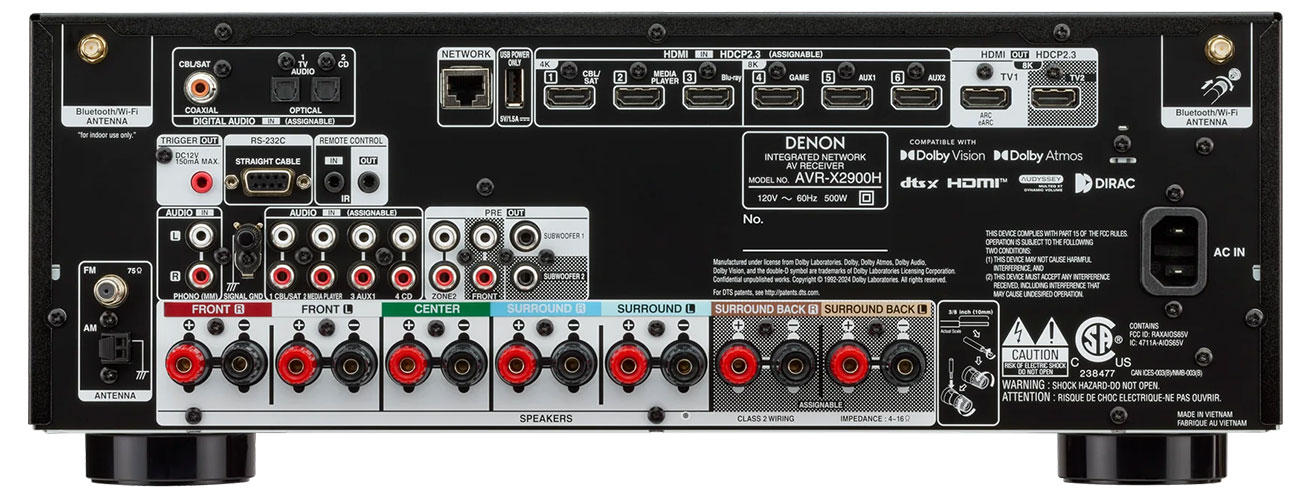
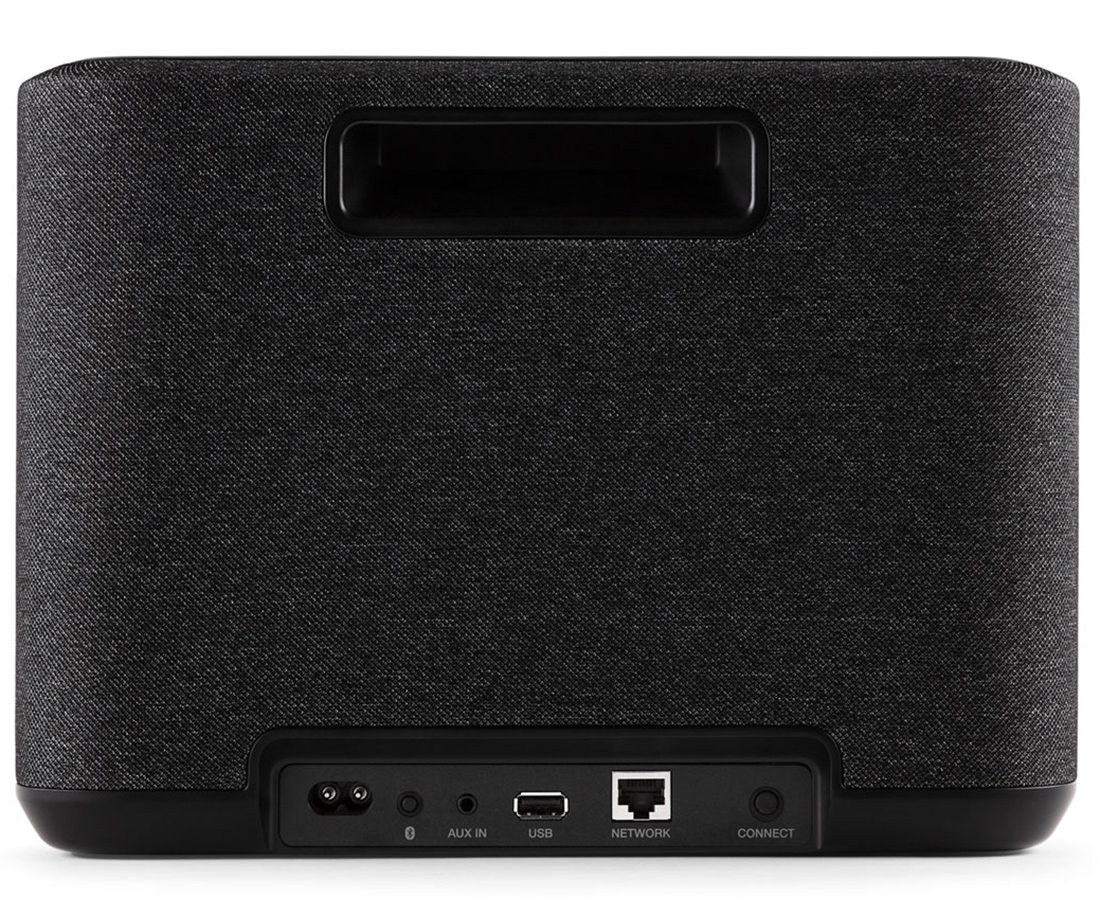
As far as cables and connectors go, remember that all the source
components in a typical home entertainment system have to be connected
somewhere! And, if yours is a multi-channel home theater system,
there are usually five (sometimes six if youre using a subwoofer)
amplifier to speaker connections too. Thats a lot of cable
behind the scenes and youll need to plan for it.
If youre putting a full scale multi-channel system together,
we think youll be happiest with at least 6" of clear
space behind a preamp/processor or a surround sound receiver.
More is even better but thats sometimes harder to come up
with, particularly if youre using a deep-chassis "all
in one" receiver. The "behind-the-scenes" space
will let you lay out enough cable to connect everything carefully
and not squash everything together as you push the control component
back into its usual space. This will also help you avoid inadvertently
unseating the cables youve just worked so hard to connect
in the first place.
You might want to ask yourself one question before you start.
Are you going to be changing components frequently or is yours
a "do it once and be done with it" system? If youre
thinking of switching or adding components in the future, we strongly
suggest you use a cabinet or rack that lets you get behind the
components to actually see whats connected where.
Believe the experts in Denons Bureau of Harsh Reality when
they tell you that youll avoid many hours of frustration
if you can see what youre doing! Thisll also give
you an easier way to route the interconnect cables, loudspeaker
wires, and AC power cords separately. Youll find it much
easier to minimize hum problems and to troubleshoot your system.
back to top
"Multi-Source" means that
your Denon component can send different audio/video signals to
different parts of your home! Its just another term for
"multi-zone" or "Zone 2" sometimes used by
other manufacturers. Of course, there are some advantages to the
Denon way of doing things -- you can watch and listen to two different
video sources at the same time, for example -- as youll
soon see.
With Multi-Source, you can play a surround sound movie soundtrack
through your home theater system in the family room while your
Aunt Matilda enjoys a Montovani video (or maybe Metallica?) in
her room. And she can pick and choose different sources via remote
control, too, if your system allows it. In fact, with some Denon
components like out award-winning AVP-8000 Dolby Digital preamp/processor
and DRA-775 RD stereo receiver, you can even control volume directly!
With the AVP-8000 and DRA-77% RD, all youll need is a separate
power amplifier dedicated to the remote zone. With other Denon
"Multi-Source" components, youll need an integrated
amplifier or some other way to adjust the remote zones playback
level. Of course, youll also need speakers but you already
knew that . . . didnt you?
The speakers, obviously, need to be placed in the remote zone,
but if youre able to use just the power amplifier, you can
place that almost anywhere. (There are some restrictions
so you may want to ask your Denon dealer for the details.) Youll
also probably want to run an infrared control link from the remote
zone back to your Denon "Multi-Source" capable component
to give folks in that second area full control over what theyre
enjoying. (Again, see you Denon dealer for details.) If you need
the greater flexibility of an integrated amplifier, we suggest
you place it for easy volume control adjustment.
One other note here -- although you might be tempted to think
of "Multi-Source" as a "stereo only" solution
for the remote zone, youd be wrong. Remember that Dolby
Pro Logic signals are usually available in a "mixed down"
two channel matrix format. So you could easily use the Multi-Source
outputs to bring a Pro Logic-encoded stereo signal to another
location and use an additional Pro Logic decoder to enjoy full
surround sound benefits in whatever room you wanted to. Thats
flexibility!
Once youve connected everything the way you want it, you
can use either front panel controls or a remote controller to
activate "Multi-Source" capability. Enjoy!
back to top
Yes, you certainly can if your Denon
has a learning remote controller. (Many do but youll need
to check the Owners Manual for the model youre interested
in.) Youll be interested to know that there are two types
of Denon learning remotes: Programmable and pre-programmed.
A Denon programmable remote can learn commands from almost any
other manufacturers remote controller. Simply follow the
instructions in the Owners Manual A Denon pre-programmed
remote controller already contains the command codes for a large
number of different components so, rather than "teaching"
the Denon remote a whole new series of individual commands, you
just tell it what components you want to control and it automatically
selects the right command codes for the job.
In either case, the advantages are obvious. You dont need
a whole coffee table full of easily-misplaced remotes to operate
your home entertainment system. You only need to keep track of
the Denon remote to enjoy all the technology at your fingertips.
back
to top
You certainly can -- but only if youve
entered the on-screen menu in the correct way. Thats because
the Denon menu system is designed to do two things equally well:
(1) Give you an fast and easy way to check the current operating
status of your system, and (2) change that status only when you
really want to.
To quickly check system status, push the "On-screen"
button on your remote controller. This "display only"
control lets you look all you want at the various system parameters
like DSP modes and Cinema EQ. You just cant change any of
them.
In order to actually change something, you need to press the front
panel or remote control button that corresponds to the function
you want to change ("Mode," etc.) In addition, you can
change other functions with the "Setup" or "Parameter"
menu screens. In order to get to these screens, youll need
to press the remote controllers "Enter" button
(usually located under the hinged door on the hand held remote)
and following the on-screen prompts that appear when you do.
If all this sounds complicated, relax. Youll find detailed
instructions in the Owners Manual and one or two trial runs
will have you navigating the on-screen menu like an experienced
sailor!
back to top
Surprisingly enough, you dont
need to know all that much! <g> Thats probably because
consumer electronics equipment is designed for compatibility.
(Now if this were a "computer" question, wed probably
be here all day!)
First, you need to get the video signal from your DVD player to
your Denon preamp/processor or receiver. You can use either a
"composite" (RCA-style) or "S-video" (mini-DIN
4-pin) output jack to the same style input jack on your Denon.
Newer Denon DVD player models, such as DVD-3000 and DVD-5000,
also feature component video outputs. This is a three connector
method, featuring one channel (the luminance, or black and white
picture information) called the "Y" channel, and two
color difference channels (R-Y, B-Y), which, when paired with
the Y channel, are decoded in the TV monitor and the original
red, green, blue (R/G/B) signals are reconstructed and displayed.
This method provides the sharpest and cleanest color picture quality,
especially since DVDs are encoded in digital component video form.
However, if you have a TV monitor that does not have component
video inputs, note that the "S" connection (which consists
of the Y channel, and the two color difference channels combined
into one C (or color) channel, hence the "Y/C" designation)
still provides superb quality results, and is vastly superior
to a composite video connection. Same is true for DSS (DirectTV)
broadcasts, which are also in component digital form.
As for audio data, your choices are pretty much open. You can
run two regular analog audio intertconnects from your DVD players
L & R channel analog outputs to an unused pair of analog inputs
on your Denon. Thatll give you high quality stereo and,
if your Denon has Dolby Pro Logic decoding capability, a very
satisfying surround experience. That's because in every DVD player,
a Dolby Digital processor takes the multi-channel (5.1) soundtrack
and down-converts it to a two channel Pro Logic compatible surround-encoded
stereo signal.
If you want the full benefits of Dolby Digital (the audio standard
for DVDs sold in North America), youll need to run either
an optical or coaxial cable from the appropriate output on the
DVD player to a similar input on your Denon Dolby Digital preamp/processor
or receiver.
If you choose a coaxial cable (a digital or video cable with an
RCA-style connector on each end), DO NOT USE THE "AC-3 RF"
input jack on the rear panel of your Denon! Remember that the
AC-3 RF input is for laserdisc players only. DVD players use newer
technology that does not require the extra demodulation circuitry
at the "AC-3 RF" input. Remember that you can use any
digital input on your Denon (except for the one marked "AC-3
RF"!) to connect your DVD players digital output.
Remember to use your Denons SYSTEM SETUP on-screen menu
and the front panel analog/digital input selector to make sure
youve got the straightest possible signal path for high
quality audio. Consult your Denons Owners Manual for
detailed information.
NOTE: Some DVD players have built-in Dolby Digital decoders (such
as the Denon DVD-3000). This means you can connect the six analog
outputs to your A/V receiver, providing that the receiver has
a special "6 Channel" input. Many Dolby Pro Logic receivers
(including popular Denon models) offer this feature, which means
you can enjoy true 5.1 channel Dolby Digital surround sound without
having to replace your A/V receiver. Check the DVD player's
owner's manual for special setup instructions, so that the bass
management of the DVD player's 6 channel outputs matches your
A/V system's speaker configuration.
back to top
Although it might seem a bit confusing
at first, this difference actually makes your Denon easier to
use in the long run. Think of it this way -- the front panel selectors
tell you what source component you want to enjoy. The real panel
inputs are simply different pipelines to get the sound from a
particular source component to your Denons internal processing
circuits as effortlessly as possible. Because many source components
give you a choice of how to do this (analog or digital outputs
from an LD player for example) and because very few of us hook
up a complex home entertainment system in quite the same way,
Denon gives you a lot of flexibility without confusing a more
casual user (your spouse, your kids, . . . or maybe even you!)
with a bewildering array of choices.
The trick here is knowing that you can "program" your
Denon so that it knows, for example, to choose the "Coaxial"
rear panel input when you push the front panel "VDP/DVD"
input selector.
Before you make any of these changes, however, remember that your
Denon has already been preprogrammed with certain "default"
connections. Dont worry as these can easily be changed but
its nice to know where youre starting from before
you begin to customize things, isnt it?
The AVR-5600, for example, has the following default selection
already made:
If you press this front panel input selector . . . . . . . . .
you get
CD Coaxial (digital)
TV/DBS Optical 1 (digital)
VDP/DVD Optical 2 (digital)
Tape 1 Optical 3 (digital)
You can change these default selections easily by following the
instructions in your Owners Manual. And youll need
to do this if you want to use the rear panel coaxial (digital)
jack to receive the audio signal from a new DVD player.
Remember that you only need to do this once. After that, you can
just enjoy one-touch convenience regardless of the source youre
using. Thats the real benefit of the flexibility built into
every Denon surround sound component.
back to top