


How to Set Up an AirTag
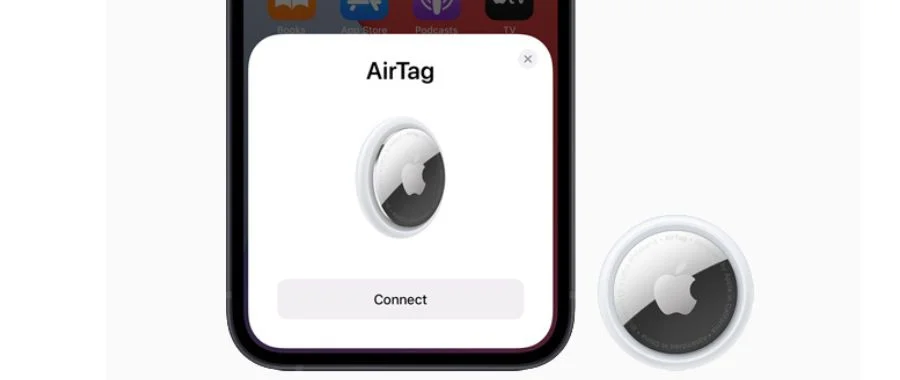

When Apple first came out with the AirTag, they revolutionized the process of finding your misplaced belongings. These Bluetooth trackers don't require data or a Wi-Fi connection, and you won't need to worry about charging them either. Instead, pair your AirTag to your iPhone before attaching it to your small and large items, such as bags, keys and wallets. If you have multiple tags, personalize each one with custom initials or emojis or place them into a key ring so you don't lose track of them. Following the initial setup, the location of your AirTag is shareable with up to five people, making one a great addition to the family pet's collar. Below, we'll walk you through how to set up an AirTag properly, so you'll always know where your beloved essentials and furry friends are.
Prior to Set-Up
Before learning how to set up an AirTag, there are a few things you'll need to double-check on your iPhone. First, open your settings and navigate to your Apple account page. Click on 'Sign-In and Security' and make sure that 2-factor authentication is activated. Go back to your Apple account page and click on 'Find My' to ensure this feature and location services are on. Then, click the back arrow before scrolling to 'iCloud.' Tap on 'Passwords and Keychain' and turn on the iCloud Keychain sync. Finally, navigate to your Bluetooth settings and switch the toggle on. Once all of these are activated and your iPhone has a secure Wi-Fi or cellular connection, you're ready to learn how to set up an AirTag.
Step One: Prepare the AirTag
To begin, take the tag out of the box and remove any plastic covering. As you remove the covering, you'll notice that a small element goes into the tag. This is the battery tab. When this tab is removed, a 'Welcome Sound' will play, letting you know that the AirTag is ready to be paired. Try not to remove the battery tab until you're ready to pair with your iPhone. If you're using a secondhand AirTag, make sure to take it out of any covering, such as a key ring. Remove the battery from the tracker and immediately reinsert it. Firmly press down until you hear a sound. Repeat this process four times until you hear a different sound, which indicates the AirTag is ready to be paired.
Step Two: Pairing to Your iPhone
Unlock your iPhone and exit out of any apps. Leave the display open on the home screen, as this is a neutral position for both devices. Place the AirTag next to your phone, preferably on a flat surface, and remove the battery tab from the tracker. After a few seconds, a prompt will appear on your phone. Press 'Connect' and follow the guided steps to finish setting up your AirTag. When complete, you'll be able to share the location or rename the tag.
Step Three: Attach to the Desired Item
Now that your AirTag has been fully set up, you can attach it to the item and let the tracker do the rest. If your belonging doesn't have a convenient spot to place the tag, consider buying an attachment with a key ring or strap. For pets, some modern collars include a designated AirTag holder so your furry friend doesn't risk losing it. Now that you know how to set up an AirTag, you can use several of these devices to keep track of all your essentials.
Instead of retracing your steps, AirTags are a great way to locate your daily essentials, should you misplace them. If you have additional questions on how to set up an AirTag, give our team of experts a call at 800-860-3577, and they'll be happy to walk you through the process. Interested in upgrading your iPhone before connecting to your tracker? Check out our guide to buying a cell phone to help you find the best model for your lifestyle.
How to Set Up an AirTag FAQs
-
The total setup process for AirTag takes about 2-3 minutes, but your iPhone only needs about 5-10 seconds to pair with the tag.
-
No, your iPhone does not need to be fully charged in order to set up your AirTag..
-
Remove the battery from the AirTag and immediately reinsert it and press down until you hear a sound. Repeat this process four times until you hear a different sound, which indicates the AirTag is ready to be paired.


